MusicKeyRoll User Manual
Main Play Screen
This is the screen where you play.
Play the notes as shown.
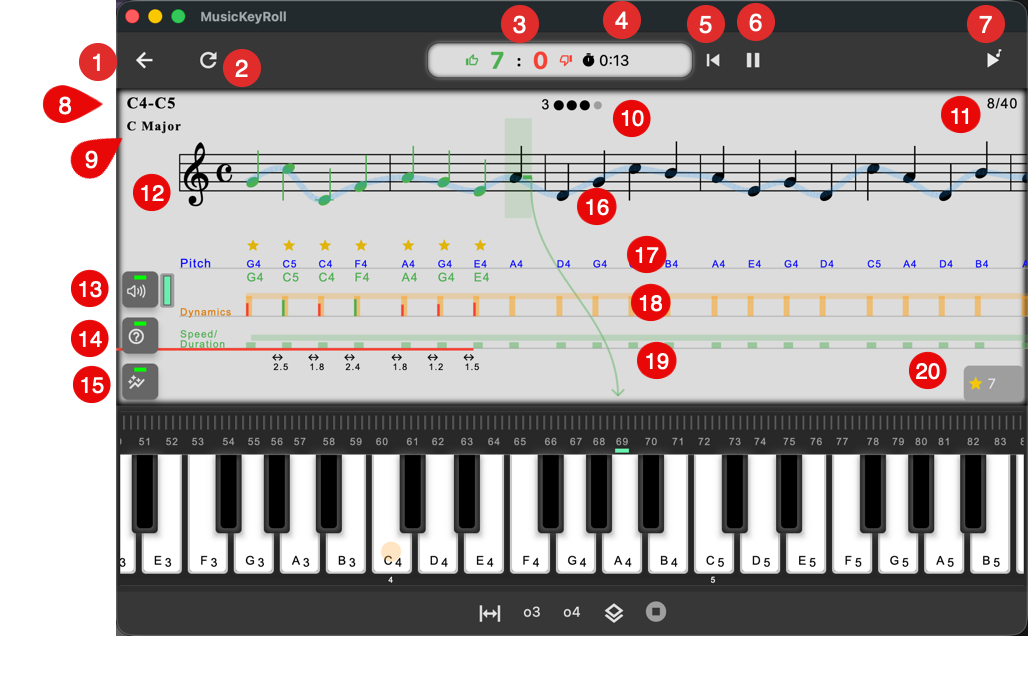
- Go back to lesson page
- Replay
- Correct / Wrong hit count
- Time progress (since you started the first note)
- Reset to the beginning
- Pause
- Listen to the notes.
- The lesson information: Key range
- The lesson information: Key signature
- Metronome
- Note progress: How many notes are hit / total notes
- The main measures to practice
- Sound on/off button and volume level (controlled by MIDI volume)
- Guide line on/off (the green line from a note to the keyboard)
- Key hit information on/off
This shows pitch/dynamics/speed information
- A green line showing pitch flow
- Pitch information
- Dynamics.
Orange bar is the expected level. Green shows a good range. Red shows out-of-range values. - Speed.
The duration of the note played. - Stars: how many notes were played correctly.
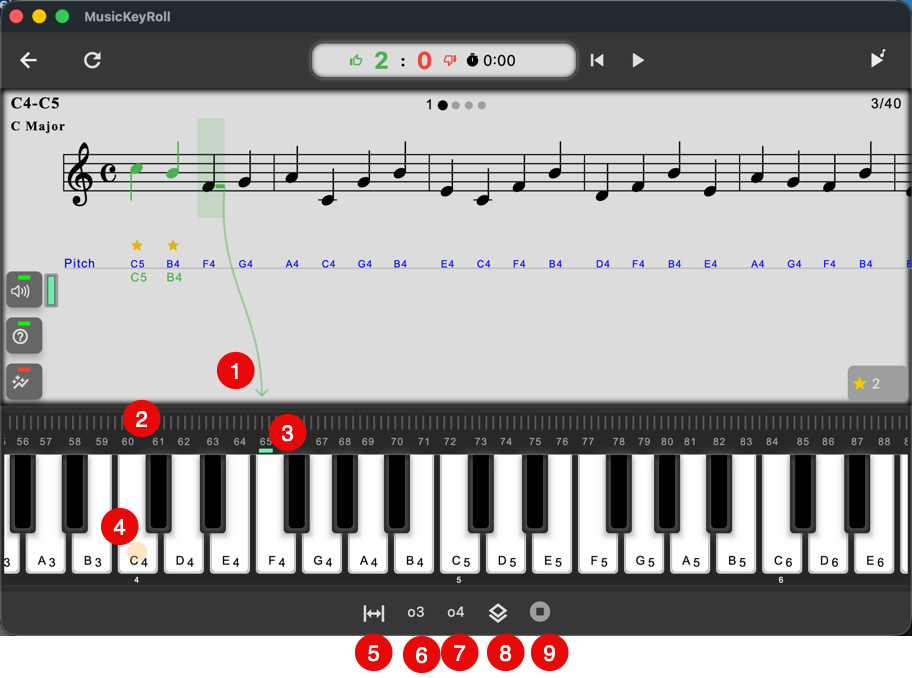
- If (?) is on, the guide line is shown from the note on the measure to the keyboard
- Drag this area to horizontally scroll the on-screen keyboard
- Green indicator showing which key was played
- The orange circle indicates middle C (C4)
- Toggle between full-width keyboard and one-octave keyboard
- Center the keyboard to C3
- Center the keyboard to C4
- Chord mode
- Stop playback
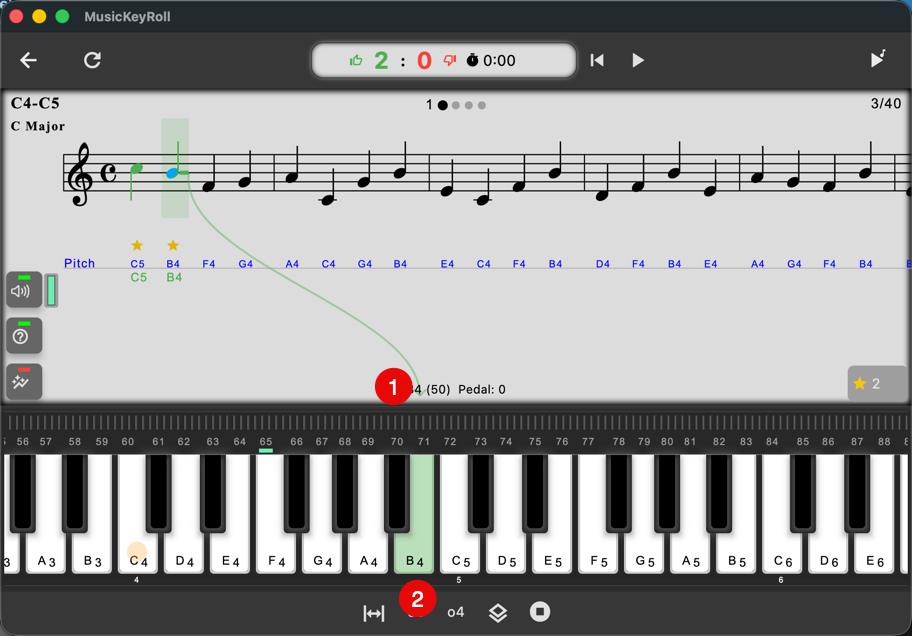 When a key is played:
- If (?) is on, the guide line is shown from note on the measure to the keyboard
- The key is tinted green.
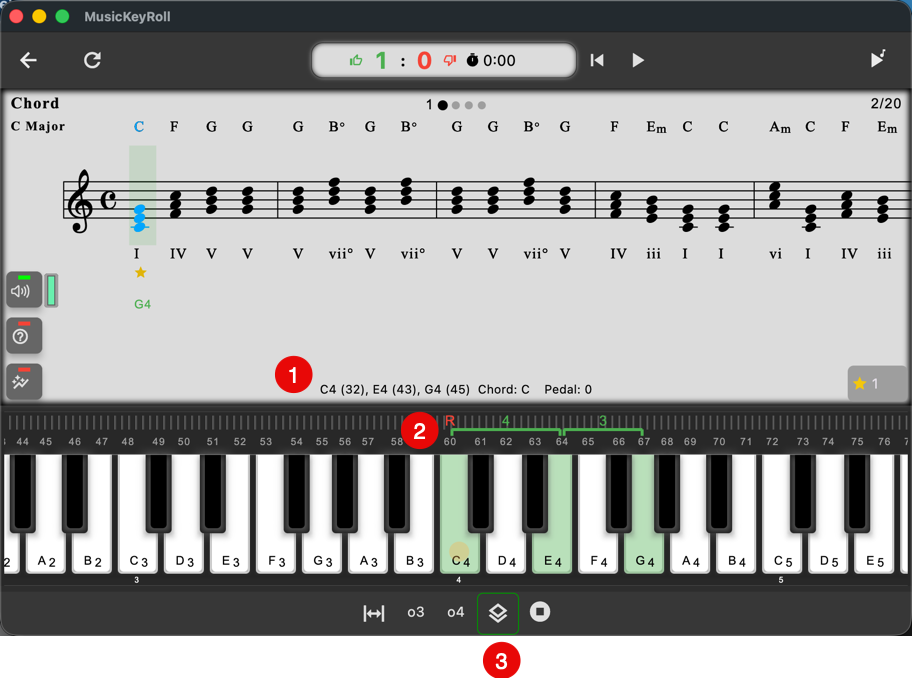 When keys are played:
- Information about which keys are played
Note names (volume)
If multiple keys are played, the chord is automatically detected. - Played keys are shown in green, and indicators for the chord root and interval distances of each note are shown.
- To use the chord display, turn on the Chord mode.