StitchSketchEx User Manual
Chart Operation Menu
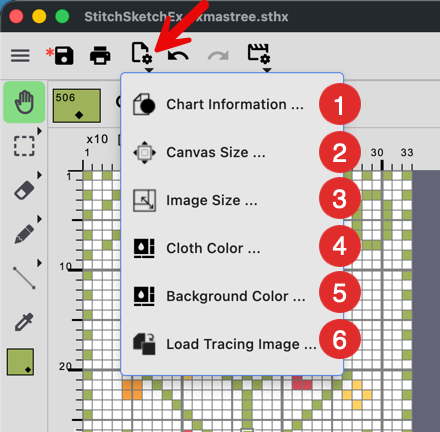
This button opens a popup menu for commands related to the current chart.
Use this menu when you want to perform an operation on the chart itself instead of selecting a drawing tool or changing the current view.
- Chart Information Update the title, author, and other chart information.
- Canvas Size Resize the canvas without changing the image size (see below).
- Image Size Resize the chart image (see below).
- Cloth Color Change the cloth color (see below).
- Background Color The background is the area where no cell exists (see below).
- Load Tracing Image
You can load a picture to trace it.
See Tracing Mode
Canvas Resize
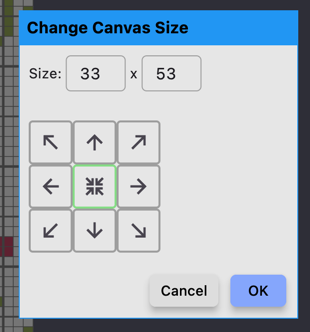 Specify the canvas (chart) size you want to change to.
Also, select where the current image should be anchored.
Image Resize
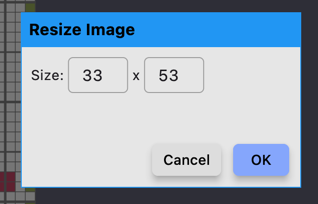 Specify the image size you want to change to.
Background, Cloth, Stitch Color
Each cell can have one of three possible states. See the example below:
- Nothing. The background is visible (dark gray below).
Use Eraser -> Cut-off mode to create this. - Cloth. The cloth color is visible. (DMC 3893 is used as the cloth color below.)
- Stitched. The stitch color and symbol are visible.
See area (4), which is a Hardanger stitch. The center portion is cut off, so the cloth is removed there.
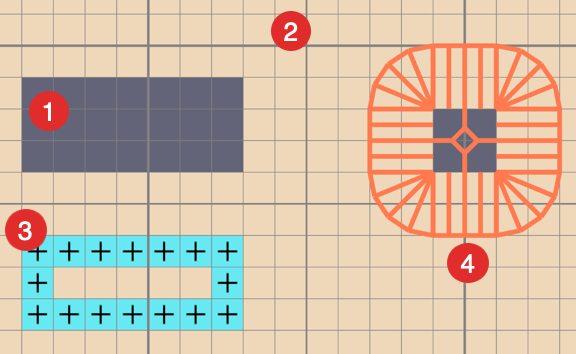
This may be clearer in Real View, where you can see where the cloth exists.