StitchSketchEx User Manual
Use this tool to manage used and selected colors.
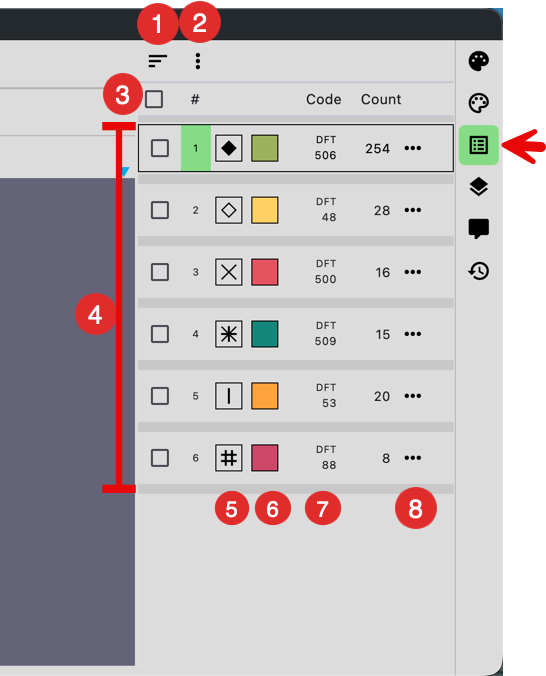
- Change sort order
- A popup menu for processing the list (see below)
- Select All Items checkbox
- The list of colors currently used to draw the chart
- Current symbol for the color. Click it to change the symbol.
- Current color of the item. Click it to change the color. All cells with this color are changed to the new color.
- Current color palette name and its code. Click it to change it.
- Color item action menu button (See below)
You can drag and drop items to reorder them.
Process the list menu
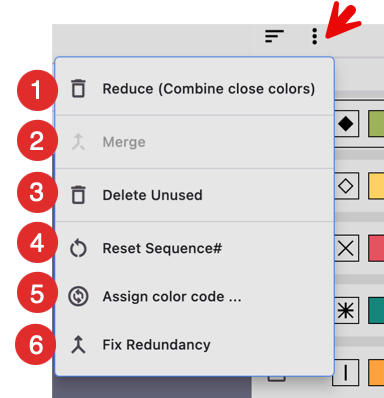
- Reduce: Combine similar colors to reduce the total number of colors. This is useful after converting a picture when you want to reduce the number of colors.
- Select items and combine them.
- Delete color items that are not used in the chart
- Reset the sequence numbers (#) so they are normalized from 1 to n.
- Assign color codes from your selected palette. A palette selector is shown. All colors are compared to the selected palette, and new color codes are assigned.
- Fix redundant color entries and merge them.
Color item action menu
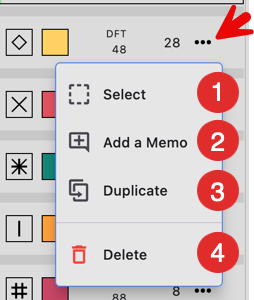
- Select the color on the chart. All the cells with that color are selected.
- Add a memo to the item.
- Duplicate the color item. The duplicate gets a new sequence code and a new symbol with the same color.
- Delete the color item