StitchSketchEx User Manual
To select vectors, click, hold the mouse button, drag, and release.
Anything inside the frame is selected.
After selection, the vector is shown with a frame and anchors (small boxes), which you can use to adjust the shape.
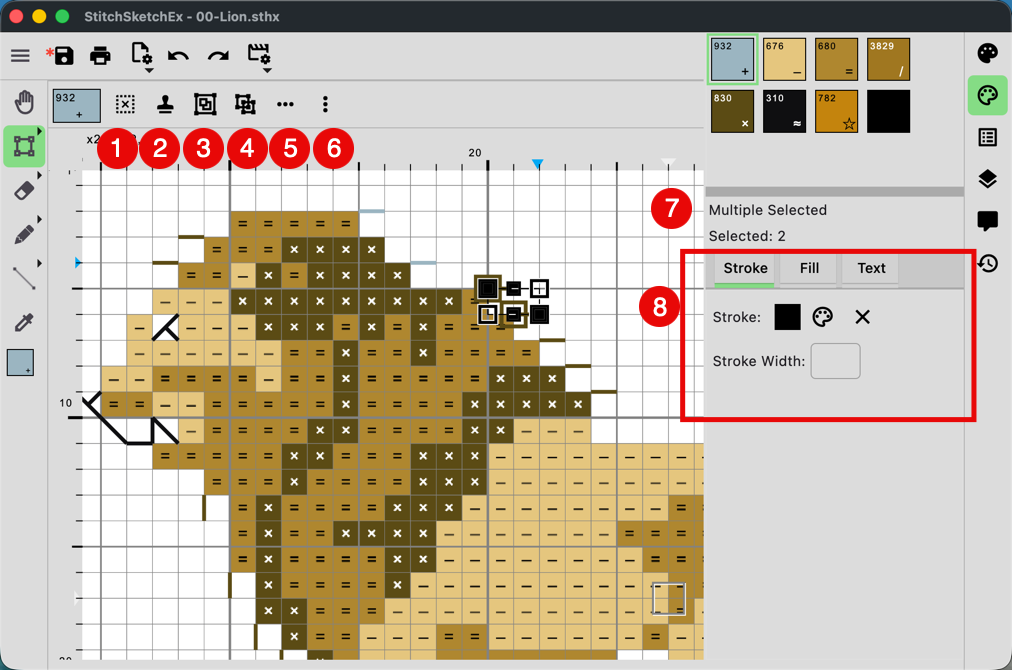
- Unselect
- Stamp
- Group
- Ungroup
- Shape/Vertices options (see below)
Shape/Vertices Option
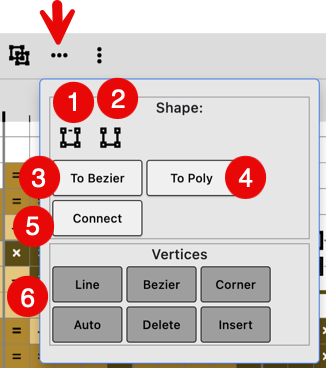
For Vectors
- Close the vector (for polygon)
- Open the vector (for polygon)
- Convert the polygon to a Bezier curve
- Convert the Bezier curve to a polygon
- Connect selected vectors
For Vertices: 6. Change the vertices mode
Selection Operation Menu
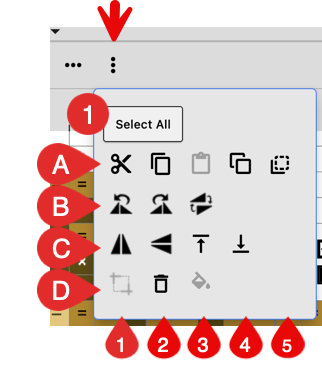
Special command:
- Select All: Select all vectors
For selected vectors, you can use these operations:
For each row, from left to right (1,2,3…)
A:
- Cut
- Copy
- Paste After pasting, the selection enters “Move Mode” (see below).
- Move the copy: Copy the selection and enter “Move Mode” (see below).
- Move: Cut the selection and enter “Move Mode” (see below).
B:
- Rotate left 90 degree
- Rotate right 90 degree
- Rotate 180 degree
C:
- Flip Horizontal
- Flip Vertical
D: 2. Delete (Erase) the selected area
Property
When vectors are selected, you can adjust their properties.
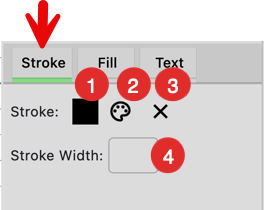
- Current stroke color
- Set the stroke color with current drawing color
- Remove the stroke color
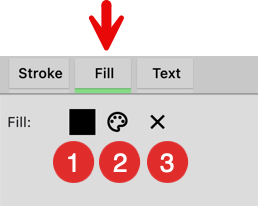
- Current fill color
- Set the fill color with current drawing color
- Remove the fill color
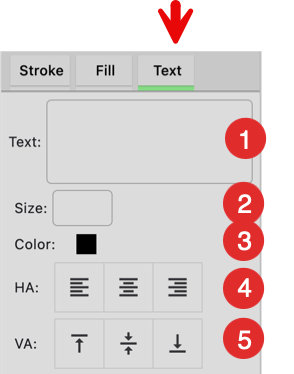 Assign text to the vector.
- Text
- Font size in pixel
- Text color
- Horizontal alignment
- Vertical alignment