StitchSketchEx User Manual
Create a new chart
This page explains how to create a new cross stitch chart.
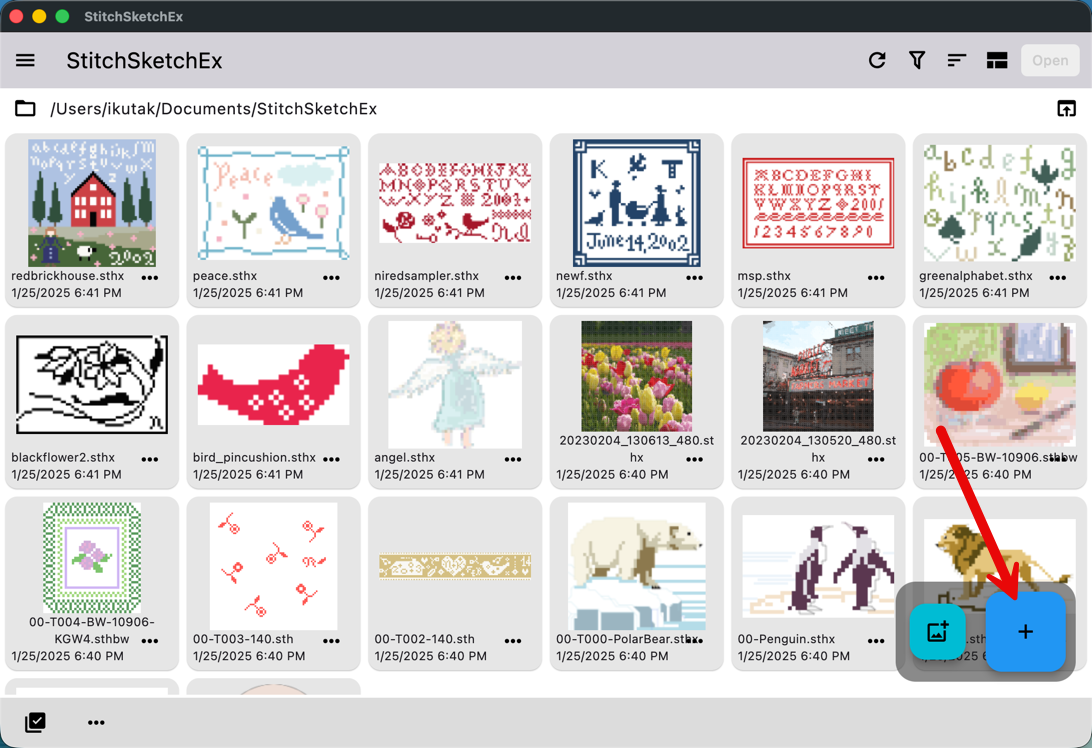
When the app starts, the file manager page is shown. Click the “New Chart” button at the bottom right of the page.
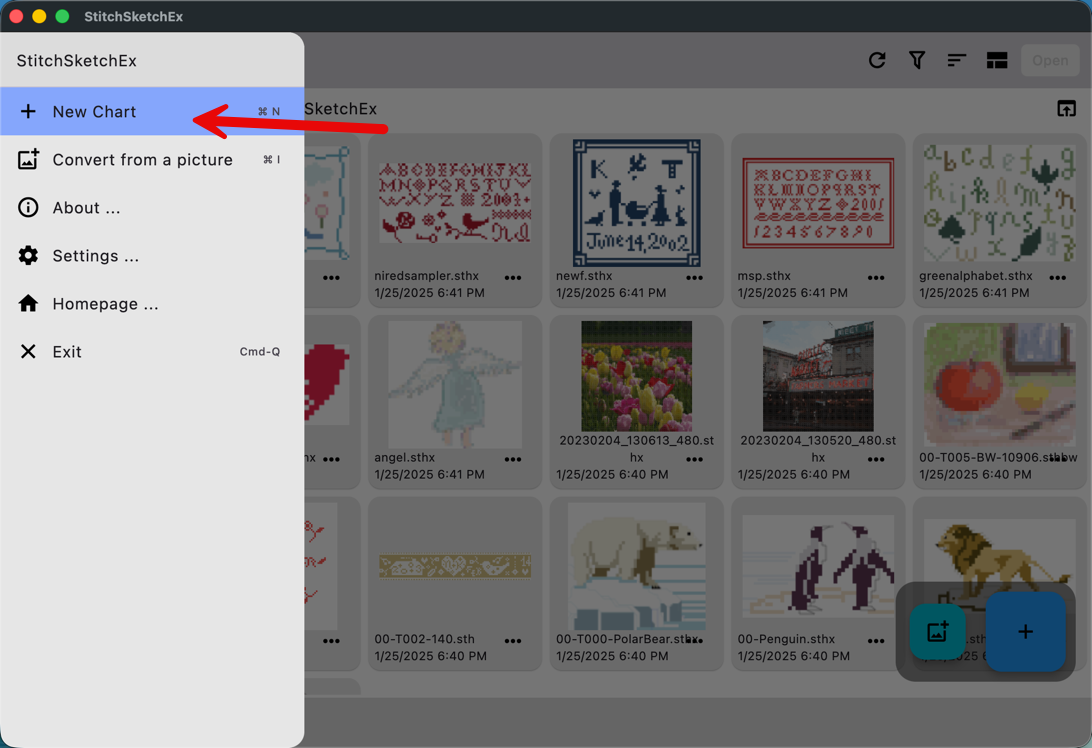
You can also use the app menu button at the top left to open the app drawer, where you will see the “New Chart” menu item.
Now the “Create a new chart” page appears.
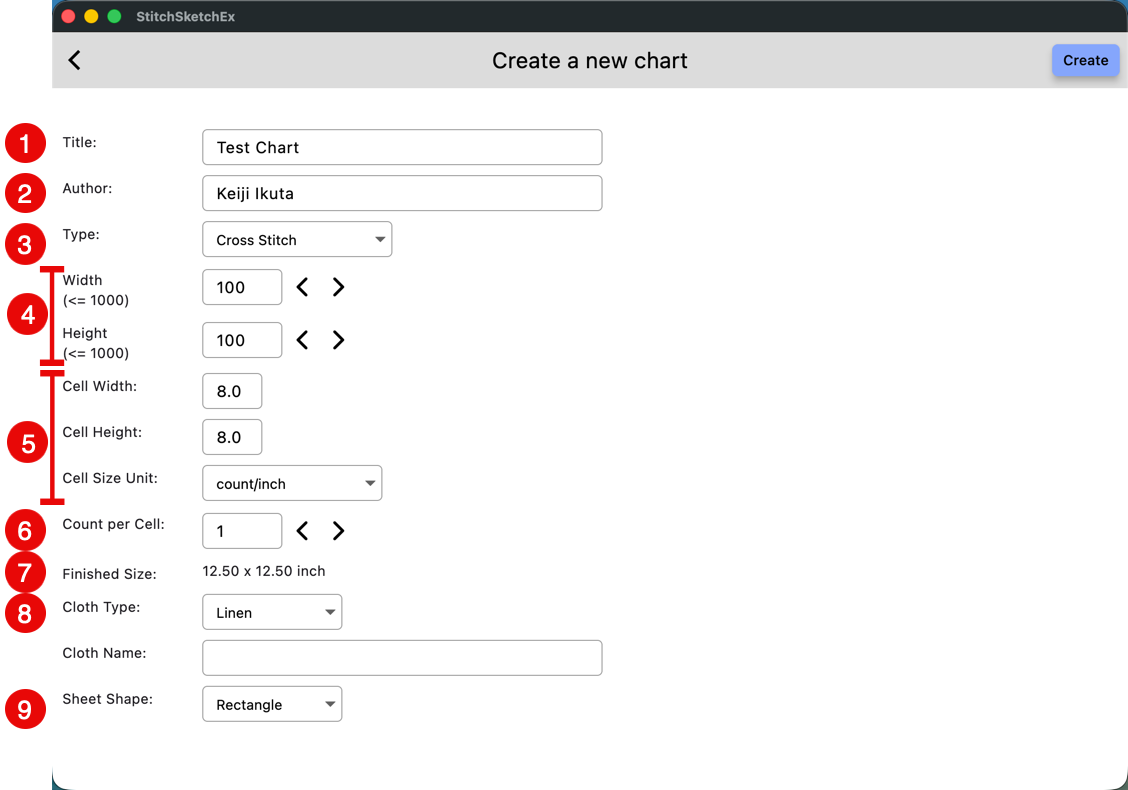
Note: Some fields may not be available depending on the chart type.
- Title of the chart
- Author
- Type
Select the chart type. Available fields vary depending on the chart type.
Choose one of the following:
- Cross Stitch
- Pixel Art
- Bead Weaving
- Iron Beads
- Color Knitting
- Knitting Pattern
- Filet Crochet
- Hardanger
- Chart size, the width and height of the cells (grid)
- Cell size by width, height, and unit.
- If the unit is count/*, the cell width and height mean the number of counts per unit length.
A higher number means a smaller actual size. - If the unit is “mm”, the cell size is the actual size in millimeters.
- “Cell Size” and “Cell Size Unit” define the thread count. For example, 12-count Aida cloth means 12 counts per inch. Enter 12 in the width and height fields, then select “count / inch”.
- When using linen, a common value is 40 counts per inch, and one stitch often covers two counts. In that case, set “Count per Grid” to 2.
- The size in counts is based on a regular full cross stitch.
- If the unit is count/*, the cell width and height mean the number of counts per unit length.
- Count per cell is usually 1. For linen or similar cloth where one grid covers 2 x 2 holes, enter 2.
- Finished size is calculated automatically.
- Cloth type and cloth name. Select a cloth type or enter any name.
- Sheet shape: Rectangle or Ellipse.
For bead weaving, you can select a “Grid Type”:
- Values: Square, Peyote, Brick.
