StitchSketchEx User Manual
Text Drawing
You can add text as a cell drawing.
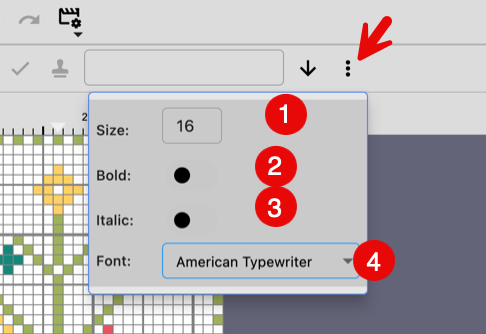
First, set the font size (#1) and font family (#4).
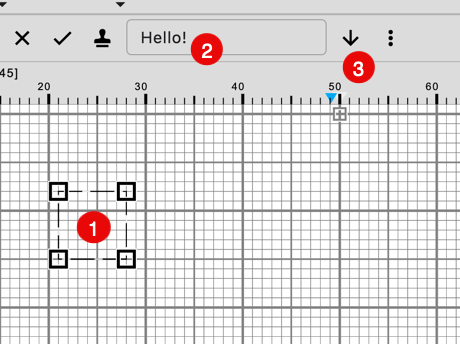
- Select the location where you want to place the text.
The top-left corner is used as the starting point. The actual width and height change based on your text. - Enter the text you want to generate.
- Click the down-arrow button to generate it.
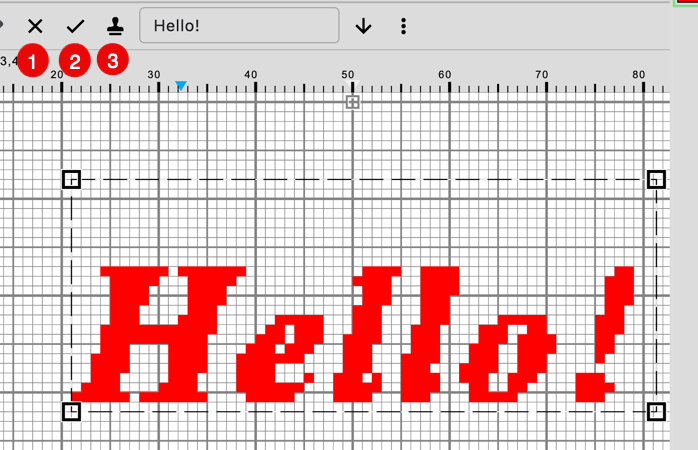
The text is generated as a pasted frame. Click outside the frame, or use one of these buttons:
- Cancel the drawing
- Finish the drawing
- Stamp it and continue stamping additional copies
Buttons
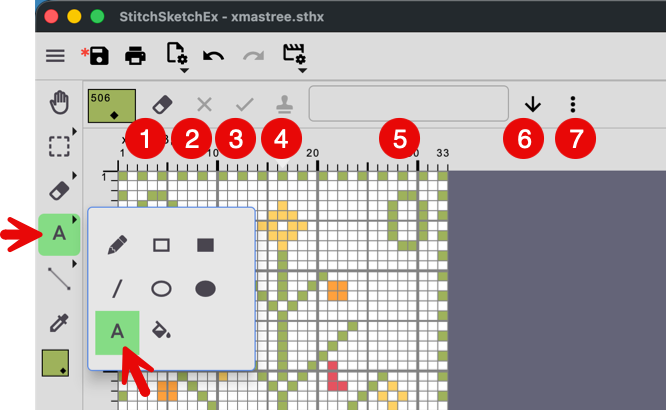
- Set Erase mode. The drawing works as an eraser.
- Cancel the pasted frame drawing
- Complete the pasted frame drawing
- Stamp the pasted frame drawing
- Text field for the generated text
- Generate button
- Text option popup menu button